The Connector Nobody Budgets For: A 2026 Field Guide to Dell Docking Stations
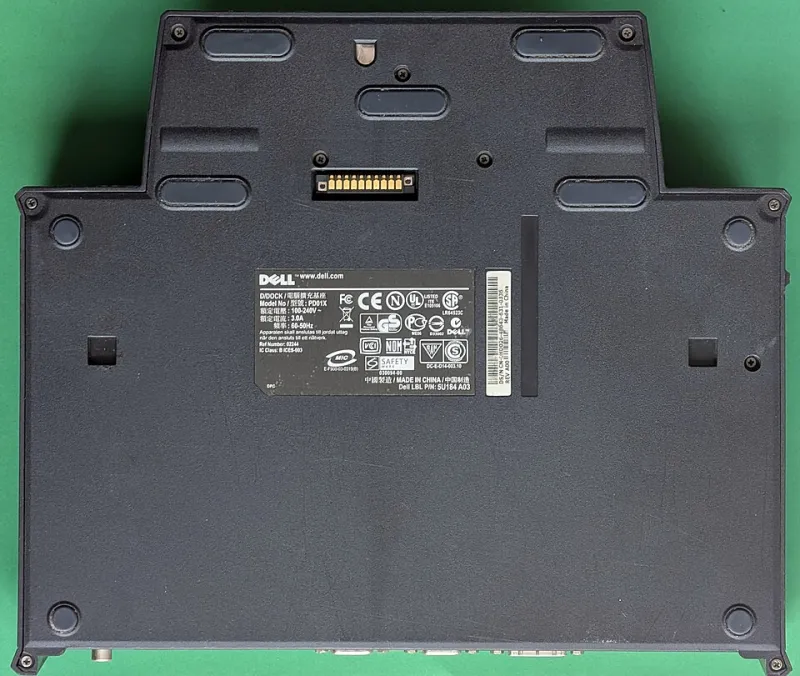
Photo: Siarhei Besarab, CC BY-SA 4.0, via Wikimedia Commons
The small box with outsized influence
A Dell laptop gets the budget line, the review cycle, and the executive attention. The dock underneath it gets a purchase order line and, too often, nothing else. That imbalance is becoming harder to defend. In 2026, the dock is the component that decides whether a laptop becomes a productive desk or a tangle of adapters, whether a conference room works on the first attempt, and whether a home office can support two displays without a drawer full of cables.
The docking station is not glamorous, but it is infrastructure. It carries power, display signals, network traffic, and peripheral data through a single connection. When it works, nobody notices. When it fails, the laptop usually takes the blame first. For organizations planning hardware refreshes this year, the dock deserves a place in the conversation before the first laptop is ordered, not after the first flicker appears.
Power delivery is the first specification, not an afterthought
The most common docking station mismatch is also the simplest: the dock does not supply enough power for the laptop it is meant to support. A dock that delivers 65 watts may keep a thin business laptop charged during light work, but it may not keep pace with a larger mobile workstation under sustained load. The result can be a battery that slowly declines during the day, a laptop that runs warmer than necessary, or a user who concludes that the dock is unreliable when the real issue is wattage.
In 2026, USB-C power delivery spans a wide range, and Dell's own laptop lineup spans an equally wide range of power requirements. The practical rule is to match the dock to the most demanding laptop it will serve, then standardize around that model for as much of the fleet as possible. A single higher-wattage dock family is easier to support than a mix of low-cost docks that work for some employees and fail for others. For mobile workstations and high-performance laptops, verify the recommended power adapter wattage and treat the dock as part of that power budget, not as a generic accessory.
Firmware and the flicker that is not the monitor
Many dock problems are diagnosed as display failures when they are really firmware or cable problems. A monitor that drops for a second, a USB keyboard that reconnects, an Ethernet port that disappears after sleep, or a laptop that fails to wake from standby can all trace back to dock firmware, host BIOS, Thunderbolt firmware, or a marginal cable. The symptoms look random because the causes sit at different layers of the system.
For managed Dell environments, the practical response is to treat dock firmware as part of the standard image and update process. Dell Command | Update and Dell's dock firmware utilities can help keep docks current, but the process needs an owner. A fleet with fifty docks running five firmware versions is a fleet with fifty small variables. Standardizing on one or two dock models, documenting their firmware levels, and testing updates against the actual laptop and monitor combinations in use will prevent a great deal of unnecessary troubleshooting.
The monitor limit is a system limit
Docking station marketing often lists impressive display configurations, but the real limit is shared across the host laptop, the dock, the cables, and the monitors. Dual 4K displays at 60 Hz may be possible on one laptop and impossible on another, even with the same dock, because the host's graphics capability and the available display bandwidth are different. DisplayPort MST, display stream compression, and USB-C alternate mode all affect what is achievable.
Buyers should look for the dock's display matrix and then verify it against the laptops they actually deploy. A Thunderbolt dock may offer more headroom for high-resolution monitors, while a universal dock that relies on DisplayLink can be useful for general office work but less appropriate for color-critical or latency-sensitive tasks. Cable quality matters as well. A premium laptop paired with a marginal cable is not a premium setup. Before a standard is adopted, test the exact combination of laptop, dock, cable, and monitor that employees will use.
Replacement economics: the dock before the laptop
A docking station can fail long before the laptop it supports. When that happens, the replacement cost is usually modest compared with a new laptop, but the downtime cost is not. A failed dock can take a desk out of service, interrupt a customer-facing role, or send a home-office employee into a day of cable swapping. Organizations that keep a small pool of spare docks and standardize on one model often recover faster than those that treat each dock as a one-off purchase.
Warranty coverage also deserves scrutiny. Docks frequently carry different coverage terms than the laptops they connect to, and a dock that is out of warranty can become a recurring support ticket. When planning a refresh, ask whether the dock is included in the warranty and support agreement, whether spares are budgeted, and whether older docks will be retired alongside older laptops. The dock is a small line item, but it is not a disposable one.
A 2026 buyer's checklist for US workspaces
- Confirm power delivery against the most demanding laptop in the fleet, not the average one.
- Verify the display matrix with the actual laptop, cable, and monitor combinations in use.
- Prefer Thunderbolt or USB-C docking for high-resolution and color-sensitive work; understand where DisplayLink fits.
- Assign ownership for dock firmware updates and include docks in the standard update process.
- Keep a spare pool and standardize on one or two models to simplify support.
- Check warranty terms, replacement logistics, and whether the dock is covered alongside the laptop.
- Test wake-from-sleep, Ethernet, audio, and USB behavior before a broad deployment.
- For home offices, favor a single-cable dock with enough power, Ethernet, and display outputs for the actual desk.
The dock is not the most exciting part of a Dell upgrade, but it is one of the most consequential. In 2026, the organizations that treat it as infrastructure rather than an afterthought will spend less time troubleshooting and more time using the laptops they paid for.